How to log
Two ways in. Pick how precise you want to be.
Same diary underneath — switch any time, nothing's lost.
Agak-agak — no scale, three taps
The numbers are estimates (marked with ~) — honest about what they are. Perfect for eating out or when you just want a food journal.
Name the food
Type what you ate — the more specific, the better the estimate.
- •Check Usual Suspects first. Stuff you eat regularly is already saved — one tap and the macros are right.
- •Anything new: "Nasi lemak from Village Park" beats "nasi lemak". Restaurant + dish gives the AI more to work with.
Pick a portion
Three buttons: Less · Normal · More. The AI knows what a normal portion of that dish looks like and scales from there. No grams to guess.
Log it
Tap Log it. Done. The entry shows ~F · ~C · ~P — the tilde reminds you these are estimates, not measurements.
Need to weigh something properly or scan a label?
Precision — weigh it, numbers that hold up
Use a scale, scan labels, photograph the scale display. Every accuracy tool the app has.
Name the food
Check Usual Suspects for regulars, or type the name — "Chicken Rice", "Mee Goreng", whatever it is.
Context is everything: dish, restaurant, how it's prepared. "Nasi lemak from Village Park" gives the AI more than just "nasi lemak". Either works — one works better.
Give it the weight
- •Have a scale? Type the grams — most accurate. Use the + and = buttons by the weight field for quick arithmetic.
- •Bones or skin? Use Net Weight — weigh the full plate, eat, then weigh what's left. We do the subtraction.
- •Camera: tap the camera icon by the weight field to snap your scale. The AI reads the display.
- •No scale today? Type
1, leave it as a serving, and be specific — "1 plate of chicken rice from Tian Tian". An informed estimate beats nothing.
Packaged food? Snap the label
Tap Upload nutrition label and photograph it. The AI reads it directly and fills everything in. No database, no barcode hunting — the label is the truth.
Estimate, then sense-check
Tap Estimate. The AI works out the macros from your description and weight.
- •Attach a photo for composition context — helpful for mixed dishes where words fall short. (It reads what's on the plate, not the weight.)
- •Numbers look off? Tap Sense-check with AI and push back. It'll explain and revise — it's not precious about it.
Log and leave
Looks right? Tap Log the Damage. You're done. Nasi lemak: tracked. Life: continues.
Just want to log without the maths?
Features
Everything it can do
Two Modes, One Diary
Flip between Agak-agak (no scale, portion picker) and Precision (weigh everything, real numbers). Same data underneath.
AI Macro Estimation
Describe what you ate, give it the weight. The AI estimates macros from real food data and local context — no database, no barcode, no wrong entries.
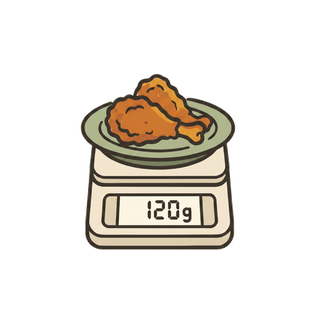
Read Your Scale
Snap a photo of your kitchen scale — the AI reads the display and fills in the weight. Multiple photos supported for subtracting waste.
Food Photo Context
Attach a meal photo before estimating. The AI uses it to read composition — what's on the plate, how it's cooked. It doesn't guess weight from the image; you still provide that.
Snap the Label
Barcode databases are full of wrong entries. Snap the nutrition label instead — the AI reads it directly and fills everything in.
Sense-Check with AI
Numbers look off? Open a chat and push back. The AI explains its reasoning, takes your feedback, and revises. It's not a vending machine.

Alfred — your food butler
Tap the bowtie on the home screen. Ask "what can I eat to hit my protein?" — Alfred knows today's log, your remaining macros, your usual foods, and your last 60 days of eating. Advice grounded in how you eat.
Usual Suspects
Save the foods you eat regularly. One tap to log next time. Macros are stored per 100g, so they always scale to whatever you had.
Combos
Save multi-item meals as a combo and log the whole thing in one tap. Share combos with friends — they get the full breakdown and can log it too.
Share Meals
Share any food or combo as a 48-hour link. Recipients see the full macro breakdown and can log it straight to their own diary.
Macro Targets
Set daily calorie and macro targets — with per-day presets, so training days and rest days switch automatically.

Weekly Report
Calorie bar chart, macro averages, and a day-by-day breakdown. The week at a glance — none of the maths on you.
FAQ
Common questions
How accurate are the estimates?
It depends on what you give the AI. A specific description plus an actual weight → good numbers. Vague description, no weight → rougher.
Precision Mode with a scale and a clear description is the most accurate path. Agak-agak is honest about being an estimate — that's what the ~ means.
The numbers look wrong — what do I do?
Tap the 💬 on the entry to open a chat and push back — "the protein seems too high for fried rice". It explains its reasoning and revises.
You can also edit the macros directly on the entry if you already know the right numbers.
Does attaching a food photo help?
Yes — for composition. The AI uses the photo to see what's on the plate (rice vs protein vs veg, how it's cooked) alongside your description.
A camera can't measure mass — you still provide the weight. We don't guess weight from photos, because that's how apps end up confidently wrong.
Can I edit an entry after logging?
How do I set daily macro targets?
Side menu → My Limits. Set calories, fat, carbs and protein — with different targets per day of the week if your training and rest days differ.
Once set, the top of your diary shows what's remaining, and Alfred uses your targets when he suggests things.
Tips